
How to delete multiple contacts
Cleaning out old contacts keeps your list healthy. It helps when you want to remove people who are no longer active, keep your list tidy, or stop sending to addresses nobody uses anymore.
Delete all contacts
- In the CRM menu, click Contacts.
- Tick the box at the top to select them all, then click Delete in the bar at the bottom.
- Click Confirm.
Delete a group of contacts
Use filters to pick out one group, for example by tag or by the date they were added.
- In the CRM menu, click Contacts.
- In the filter panel on the left, tick Tag. Keep Tagged with and choose the tag, for example Lead.
- Only contacts with this tag now show. Tick the box at the top of the list to select them all, then click Delete in the bar at the bottom.
- Click Confirm.
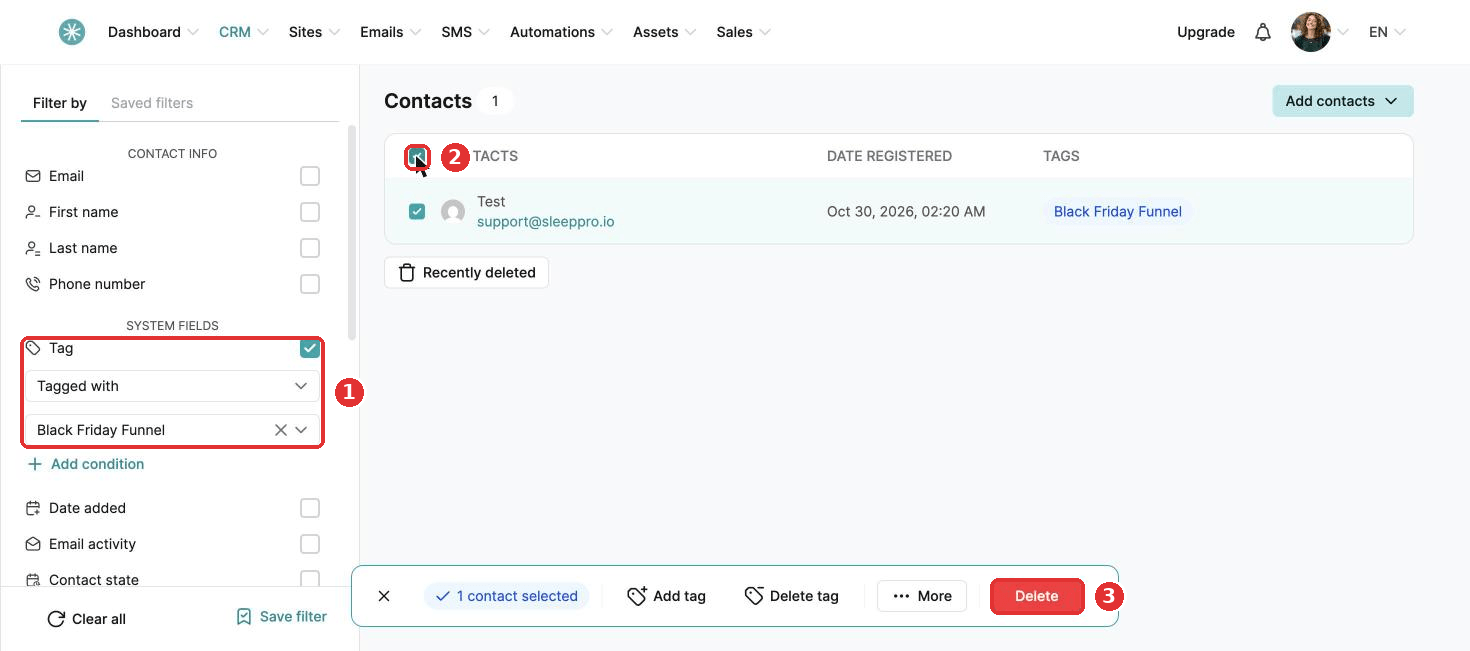
The rest of your list stays untouched.
Removing contacts you no longer need helps your emails reach inboxes, keeps your CRM focused on the families who matter, and saves you time. Make it a regular habit.
Did this answer your question?