
How to manually add students to a course
Gifting your course to a client, or adding a parent who paid another way? Here is how to add a student yourself.
- Go to Assets, then Courses, and click your course.
- Click Add student at the top. The button only works when the course is active.
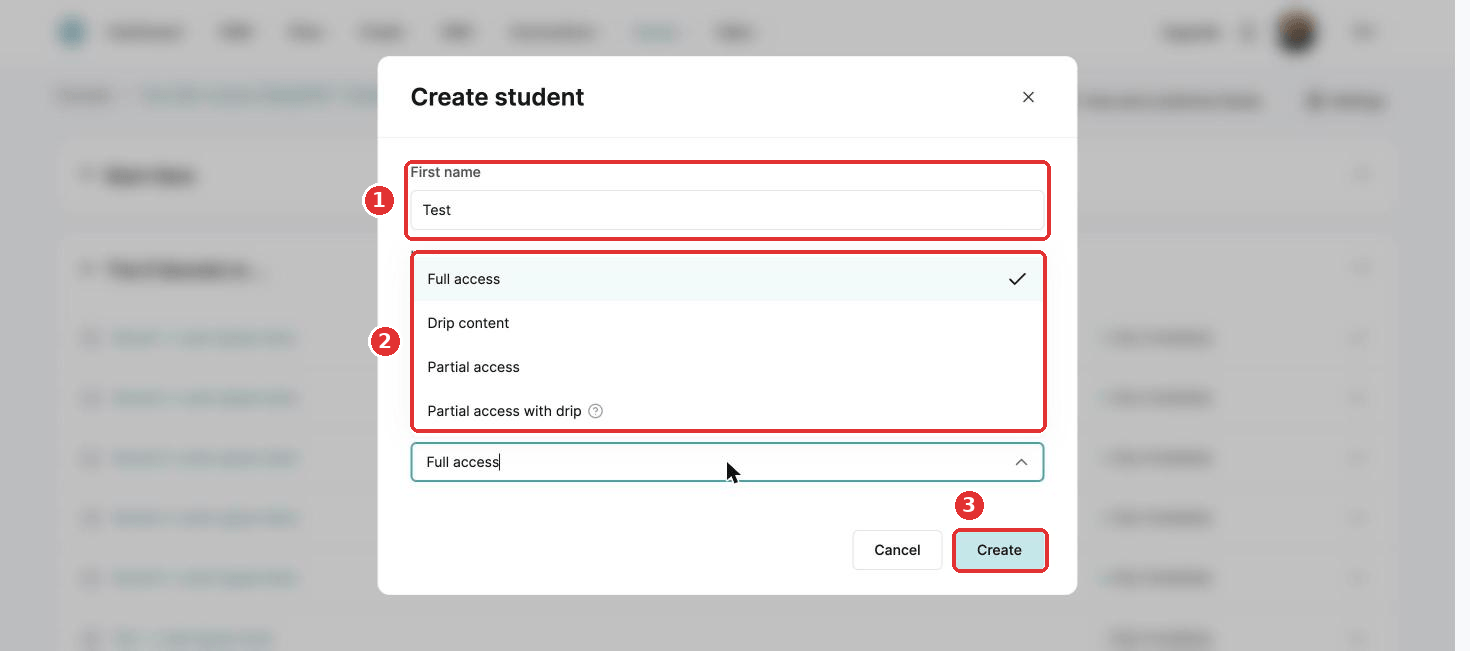
- Enter the first name, last name and email.
- Choose the access type:
- Full access: the whole course straight away.
- Partial access: only the parts you choose.
- Drip content: lectures open gradually.
- Partial access with drip: only the parts you choose, opening gradually.
- Click Create.
The student receives an email with their login details and a link to the course straight away. See How are the different course access types different? for more on access types.
Did this answer your question?