
How to filter your contacts
Filters help you find one group of contacts, for example every parent with the tag Toddler, or everyone who has not opened an email in three months. You can then tag, email or clean up just that group.
Filter your contacts
- In the CRM menu, click Contacts. The filter panel is on the left.
- Tick the field you want to filter on. Its options open below it.
- Choose your options. The list updates straight away and the number next to Contacts shows how many match.
- To narrow it down further, tick another field, or click Add condition under the field.
- Click Clear all to start again.
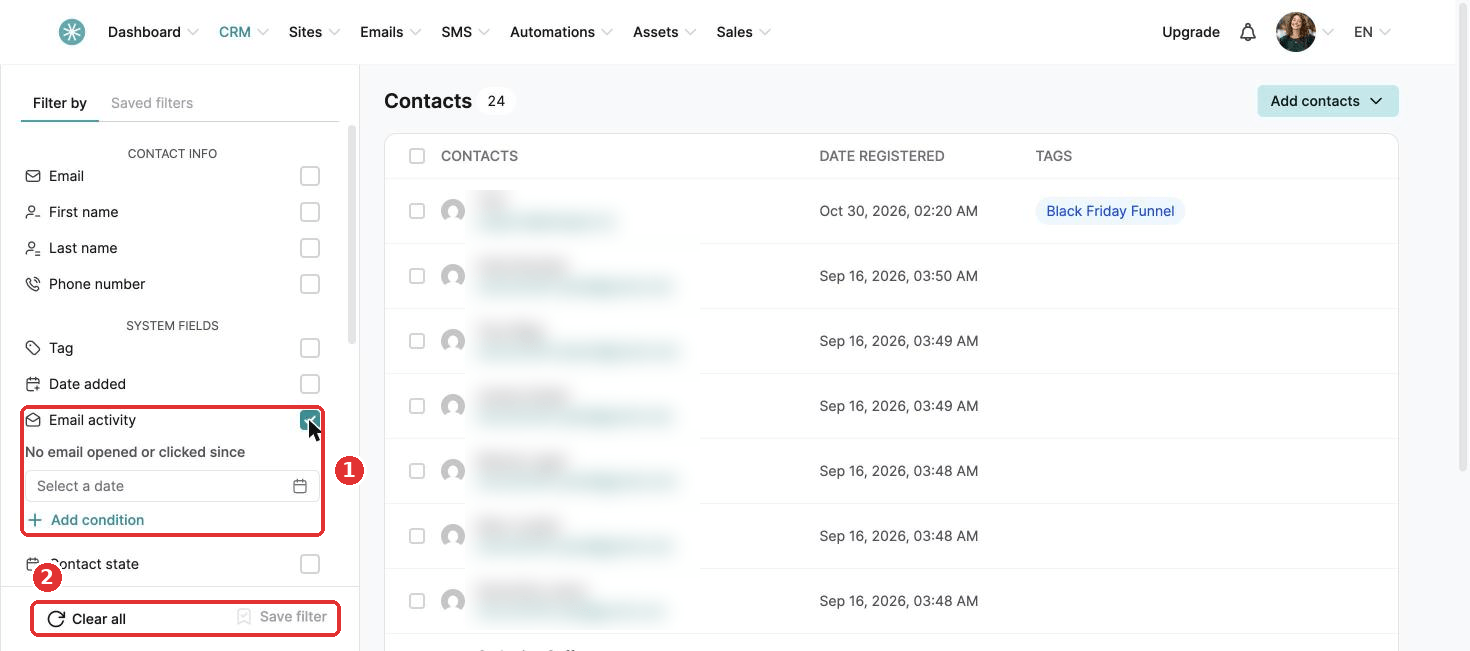
What you can filter on
| Field | What it finds |
|---|---|
| Email, First name, Last name, Phone number | A contact by their details |
| Tag | Tagged with a tag, not tagged with a tag, or no tag at all |
| Date added | Added on a date, on or after a date, or on or before a date |
| Email activity | No email opened or clicked since a date you choose |
| Contact state | Active, Unsubscribed, Bounced, Has made at least one payment, Has not made any payment yet |
| Location | Country, state or province, city, postal code and address |
| Custom fields | Your own fields, such as Baby's Age |
Save a filter you use often
- Set up your filter.
- Click Save filter at the bottom of the panel and give it a name.
- Find it later in the Saved filters tab at the top of the panel.
What to do with your results
Tick the box at the top of the list to select all results. In the bar at the bottom you can:
- Add tag or Delete tag.
- Delete the contacts. See How to delete multiple contacts.
- Click More to subscribe them to a campaign or unsubscribe them, resubscribe them to or unsubscribe them from all marketing emails, or export them.
Ideas:
- Has not made any payment yet: parents to invite to a sleep assessment call.
- No email opened or clicked since a date three months ago: inactive contacts to clean up.
- Has made at least one payment: past clients to ask for a review.
Did this answer your question?