
How to create and configure a price plan
A price plan sets what parents pay and how: once, every month, or in installments. Here is how to create one.
You will need a funnel with a payment page.
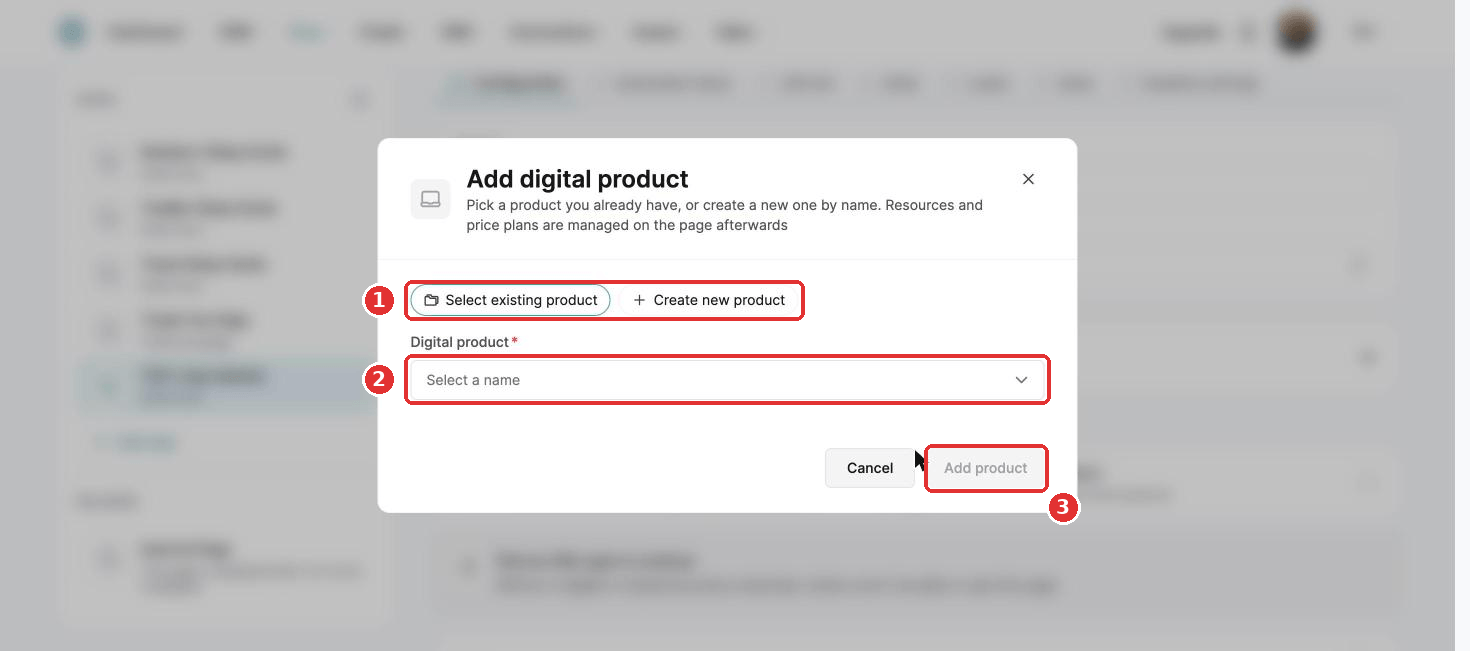
- Open your order form and choose Digital product as the offer type.
- Choose Select existing product and pick it, or Create new product and type a name, for example 2-week sleep support package.
- Click Add product.
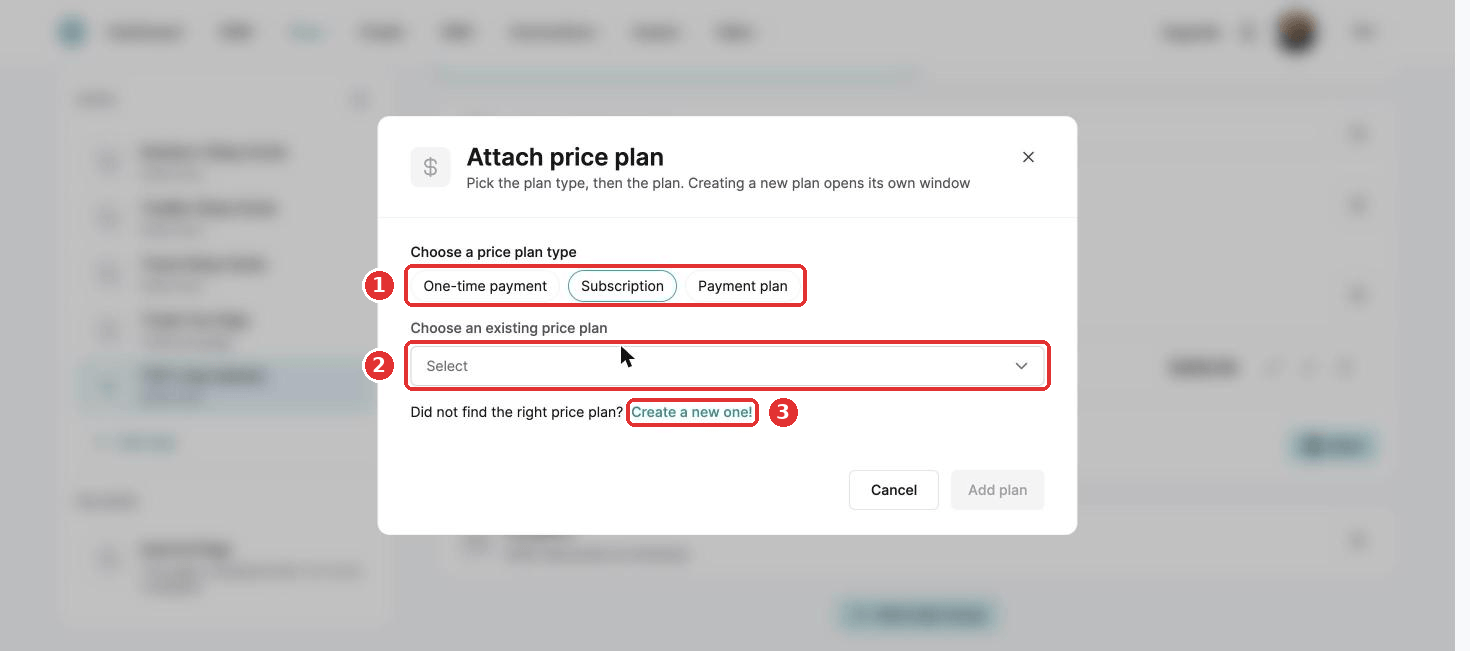
- Click Edit product, then + next to Price plans.
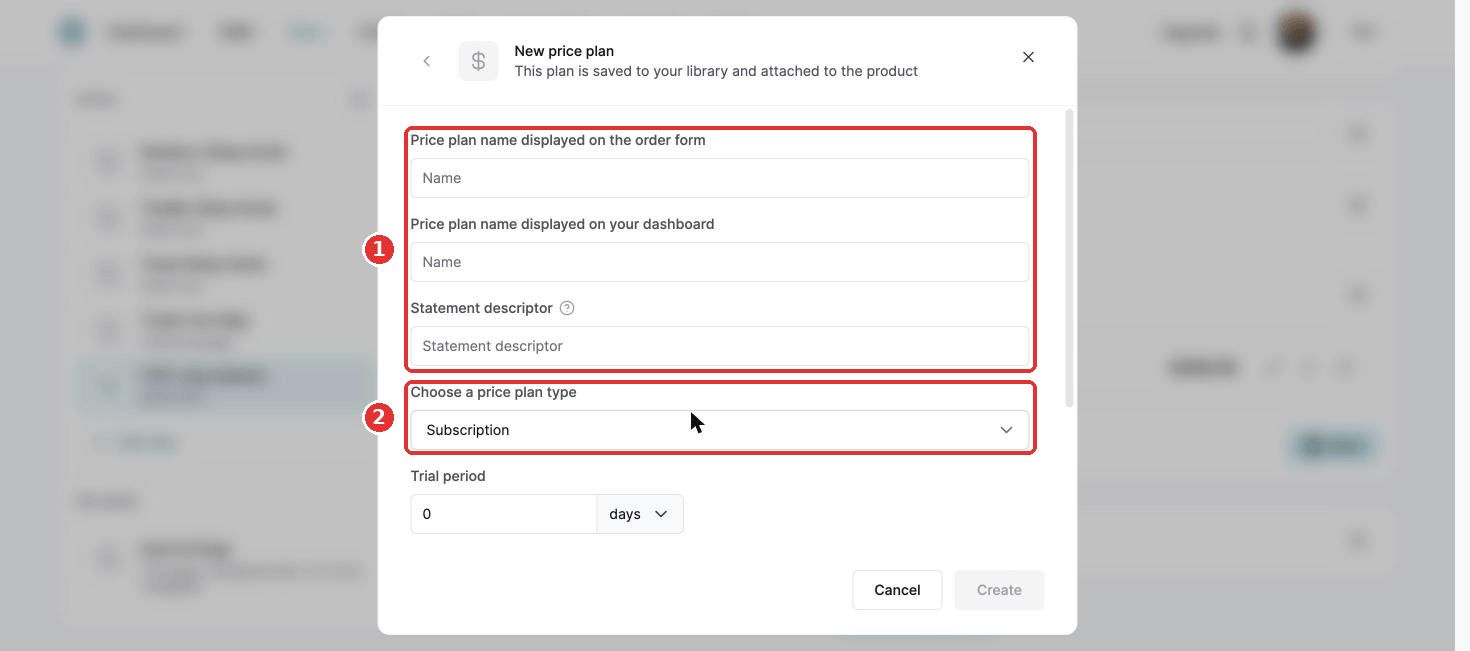
- Choose the price plan type: One-time payment, Subscription or Payment plan.
- Pick a plan under Choose an existing price plan and click Add plan, or click Create a new one!
For a new plan, fill in the name displayed on the order form, the name displayed on your dashboard, and the statement descriptor (the name on the parent's bank statement).
1. One-time payment
- Choose One-time payment.
- Enter the amount.
- Set the tax behavior: Exclusive or Inclusive.
- Click Create.
2. Subscription
- For a free trial, enter its length and choose days, weeks, months or years. No trial? Enter 0.
- Under Customers will pay, enter the price, for example $20.
- Under Each, choose how often parents pay, for example every 1 month.
- Set the tax behavior.
- Click Create.
3. Payment plan
Set it up like a subscription, then add the total number of payments, for example 3 for three monthly payments. Click Create.
Once the plan is added, click Save under Price plans to finish your product.
Price plans here are for digital products. For a physical product, set the price when you create the product.
Did this answer your question?