
How to automatically and manually add tags to your contacts
You can give contacts a tag automatically, based on what they do, or add tags yourself.
You will need a tag. See How to create a tag.
Add tags automatically
- Use an automation rule to add a tag when a parent takes an action, such as signing up for your free guide. See How automation rules work.
- Add a tag through the resources of your payment page, so every buyer gets it. See How to create an order form or payment page.
Add tags manually
- In the CRM menu, click Contacts.
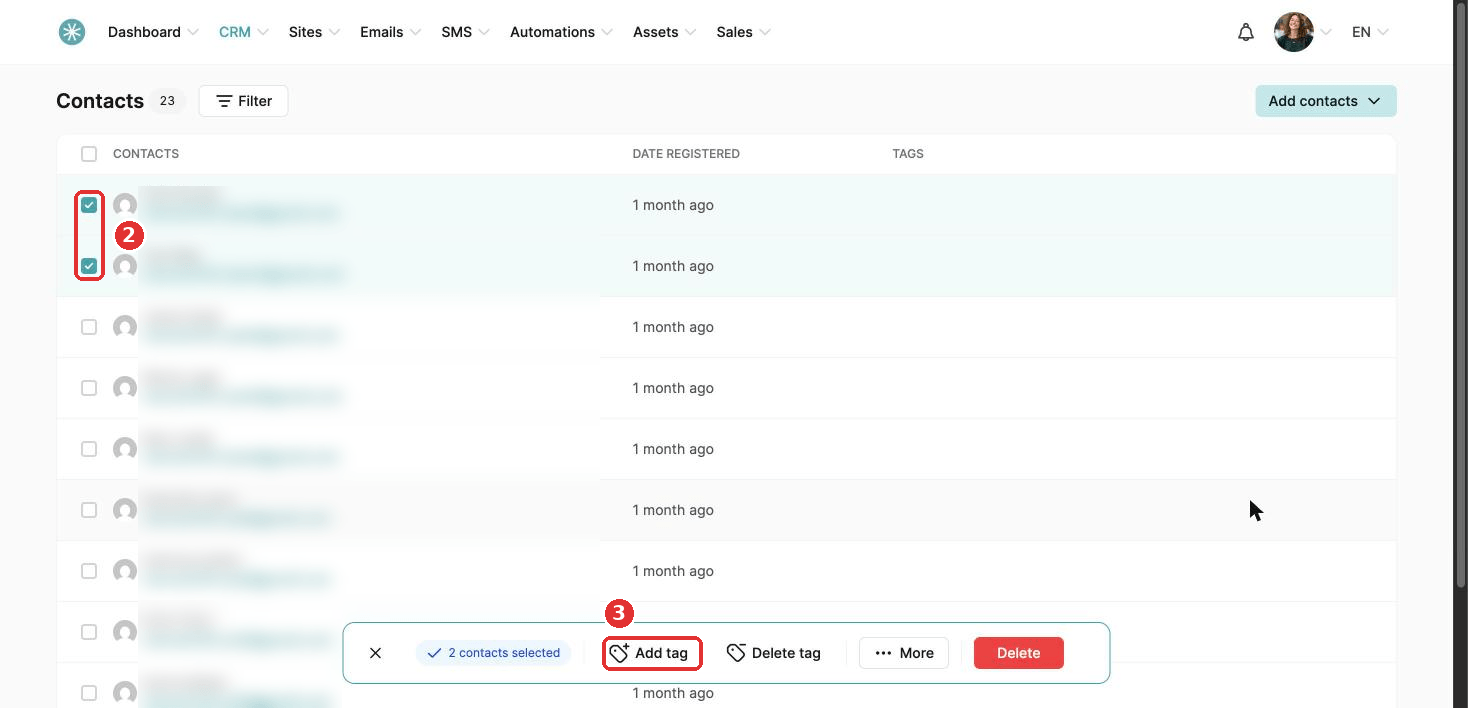
- Tick the contacts you want to tag.
- Click Add tag in the bar at the bottom.
- Choose the tag and click Add tag to contacts.
Watch your automation rules
If an automation rule starts when a tag is added, adding the tag, by hand or automatically, starts the rule too. This can subscribe a parent to a campaign or send an email.
Before you add or change tags:
- Check your active automation rules.
- Know which tags start which rules.
- Think ahead about what will happen once the tag is added.
This keeps your automations running the way you planned, and stops a parent from receiving an email meant for someone else.
Did this answer your question?