
How to subscribe contacts to a campaign when importing a contact list
Moving from another email tool where parents were part way through a sequence? You can subscribe them to a SleepPRO™ campaign while you import them, so they continue where they left off.
You will need:
- A campaign in SleepPRO™
- A CSV file with your contacts
Step 1: choose the campaign
Start your import as described in How to import or export a contact list. Upload your file, add tags if you like, and click Next until you reach Subscribe to campaign. Choose your campaign in Select campaign and click Next.
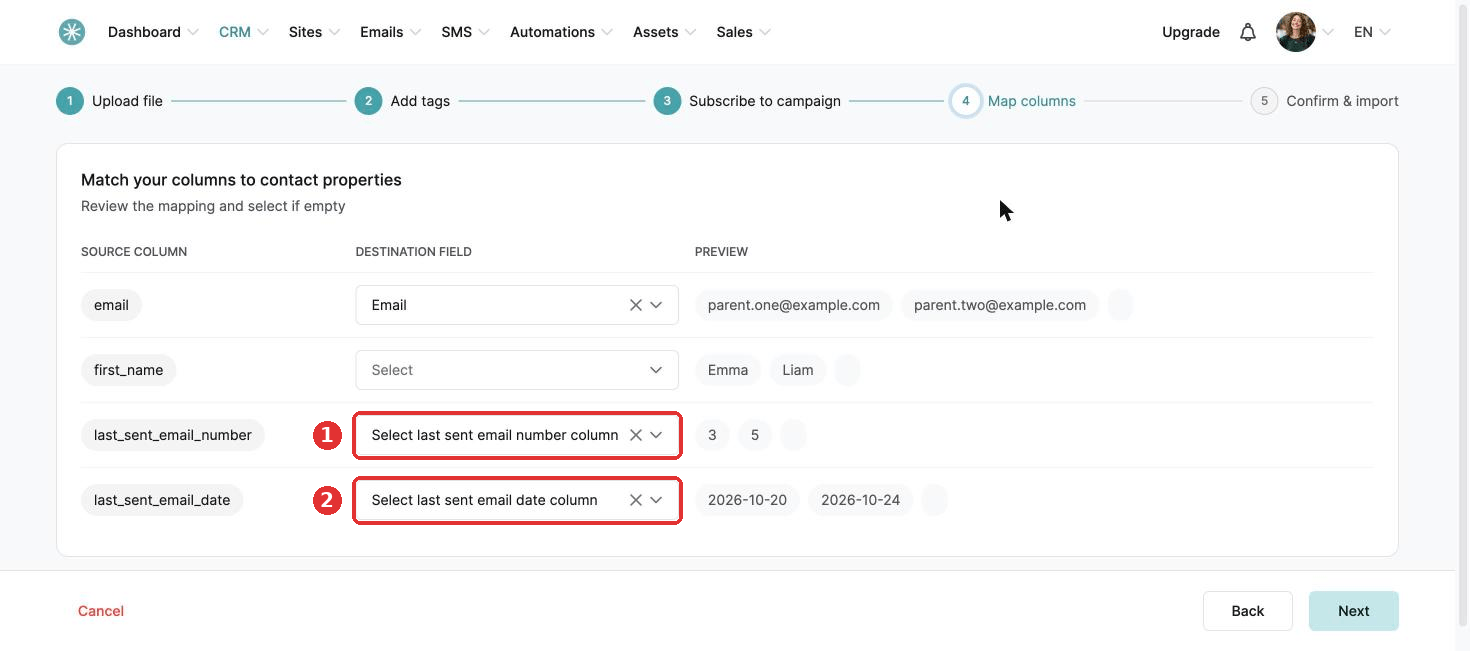
Step 2: match your columns
Your file needs an email address column. In the Destination field next to it, choose Email.
Then match these two columns:
- For the campaign step number from your previous tool, choose Select last sent email number column.
- For the date the contact received their last email, choose Select last sent email date column.
Click Next and confirm the import.
Did this answer your question?