
How to connect your domain to SleepPRO™
Your own domain, such as www.yoursleepbusiness.com, makes your business look professional and easy to remember. Here is how to connect it.
You will need a domain bought elsewhere, for example at GoDaddy or Namecheap.
A domain can only be used for one website. If your domain currently shows a website somewhere else, it stops working there once added to SleepPRO™. Want to use a subdomain instead, such as sleep.yoursleepbusiness.com? See Integrating your subdomain with SleepPRO™.
Step 1: add your domain in SleepPRO™
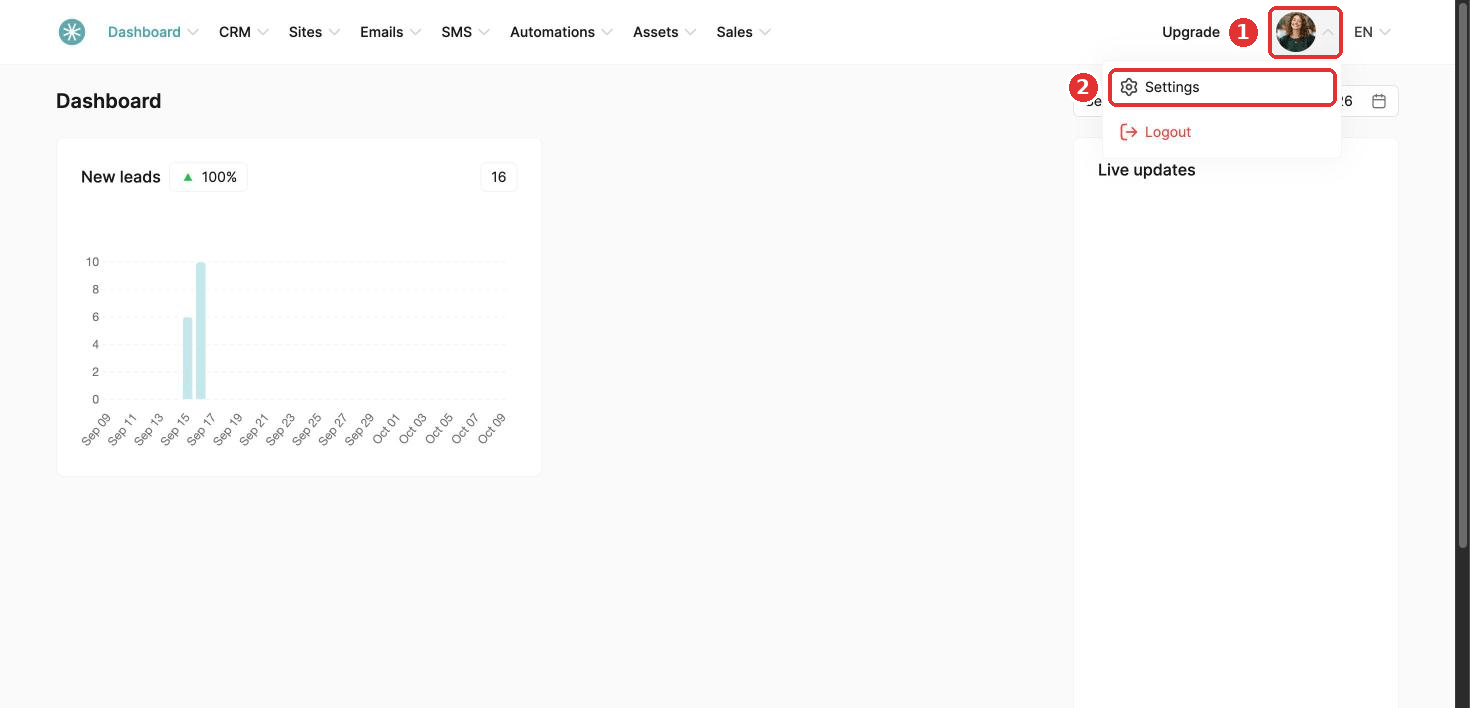
- Click your profile picture, then Settings.
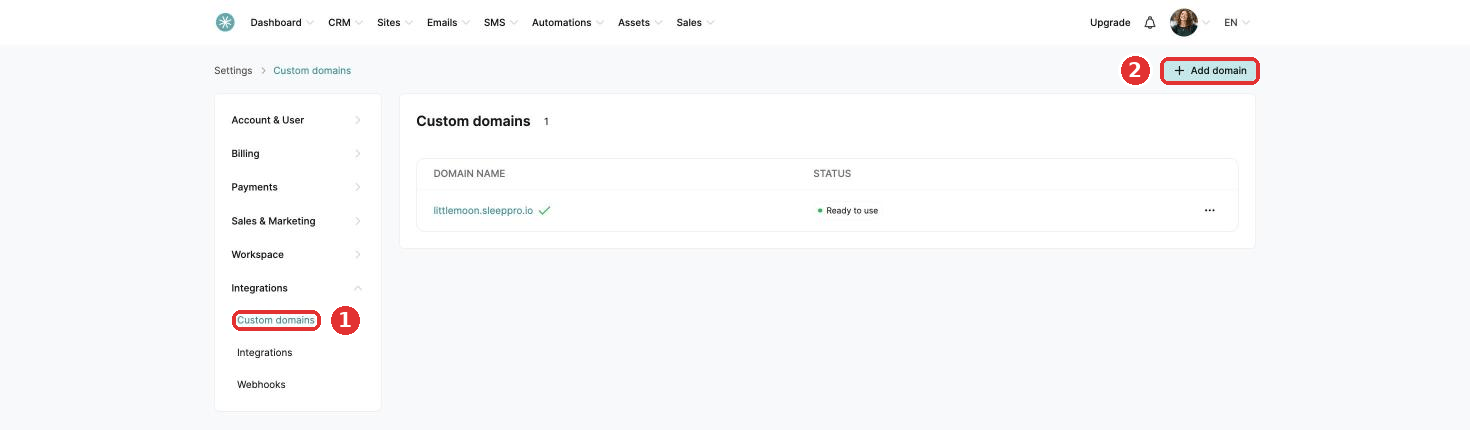
- Click Integrations, then Custom domains, and click Add domain.
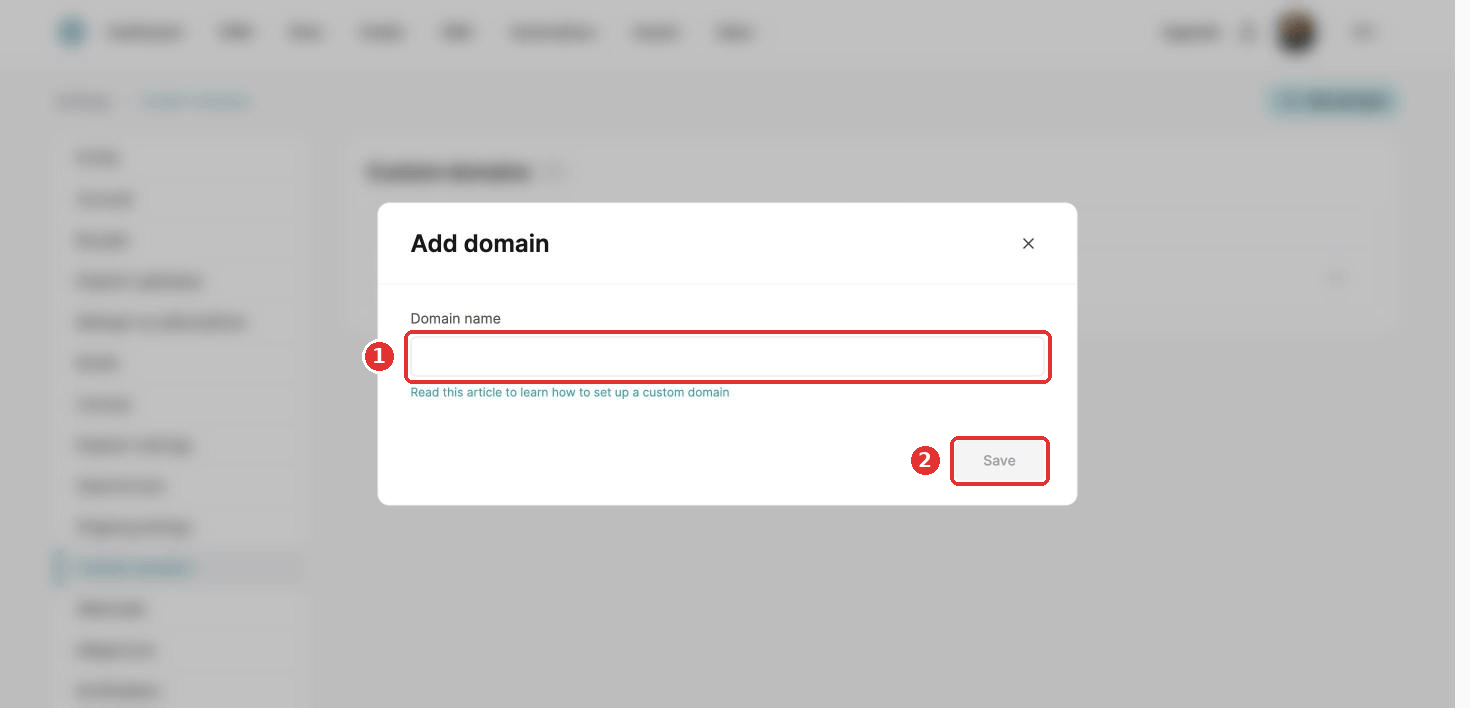
- Enter your domain starting with www, for example www.yoursleepbusiness.com, and click Save.
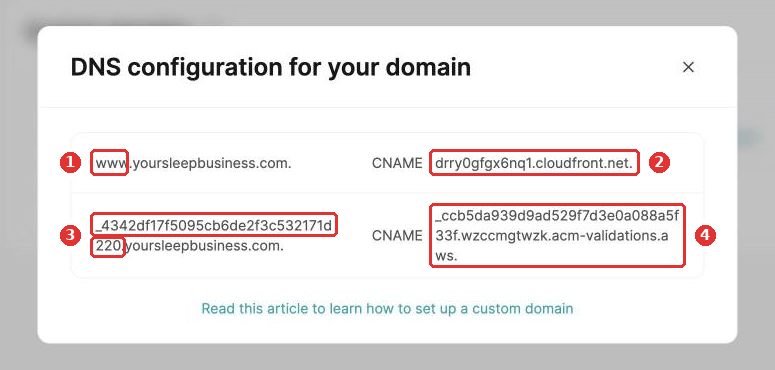
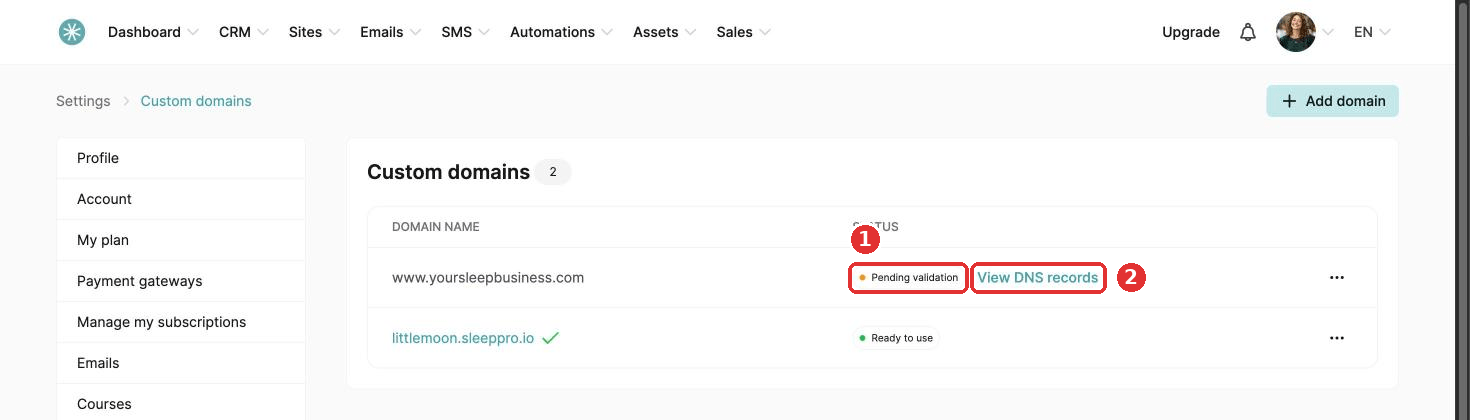
- A popup shows two CNAME records, made of four codes. You add these at your domain provider:
- First record: code 1 (www) goes in the Name (or Host) field, code 2 in the Value (or Target) field.
- Second record: code 3, the part before your domain starting with an underscore, goes in the Name (or Host) field. Code 4 goes in the Value (or Target) field.
Closed the popup? Click View DNS records next to your domain to see your codes again. Once your provider has the records, the status changes from Pending validation to Ready to use.
Step 2: add the records at your domain provider
Log in at your domain provider, open the DNS settings of your domain and add two CNAME records with your four codes.
Important: enter only the part before your domain name. For example, if the value is si942517.yoursleepbusiness.com, enter only si942517.
Step by step guides for your provider:
- How to connect your GoDaddy domain to SleepPRO™
- How to connect your Namecheap domain to SleepPRO™
- How to connect your Hostinger domain to SleepPRO™
- How to connect your Cloudflare domain to SleepPRO™
Approval can take a few hours. Once your provider has the records, the status in SleepPRO™ changes to Ready to use.
Did this answer your question?