
How to build a custom login page
Give your client and student login page your own look, so parents see your brand from the first click.
You will need your domain connected to SleepPRO™.
- Click your profile picture, then Settings.
- Click Integrations, then Custom domains. Click the three dots next to your domain and choose Settings.
- Click Edit login page.
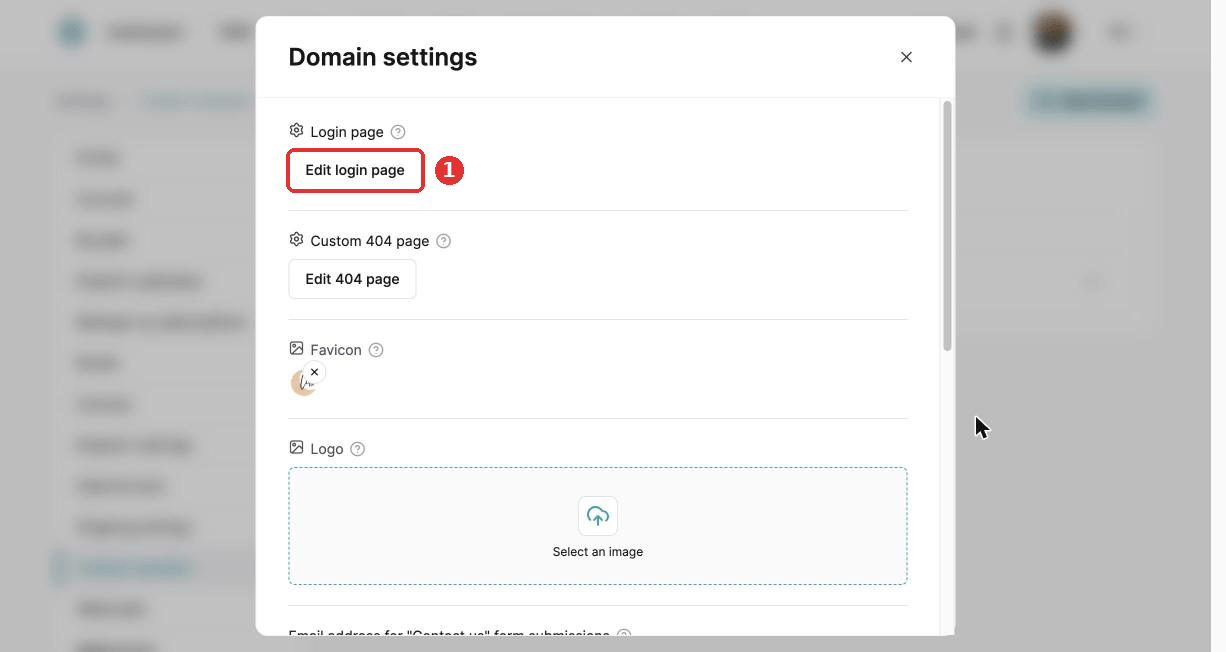
- Design your login page in the editor.
The page needs an Email field, a Password field and a Login button to work.
Edit the other login forms
Click the Custom login tab and choose the layout to edit. The default form is the first one shown.
- Registration: the sign-up form.
- Set password: the form to create a password.
- Resetting: the password reset form.
Click Save at the top right.
Once you save, the previous version of the page cannot be restored.
Did this answer your question?