
How to add the terms and conditions to your pages
Terms and conditions protect you and set clear expectations with families. Here are two ways to add them.
Method 1: on your order forms
- Click your profile picture, then Settings, then Payments, then Payment settings.
- Write or paste your terms and click Save.
- Open your order form in the editor.
- Click Popups, then + to add a popup.
- Click the gear icon to show the popup, then Edit popup settings, and choose the text element with your terms.
- Click Save.
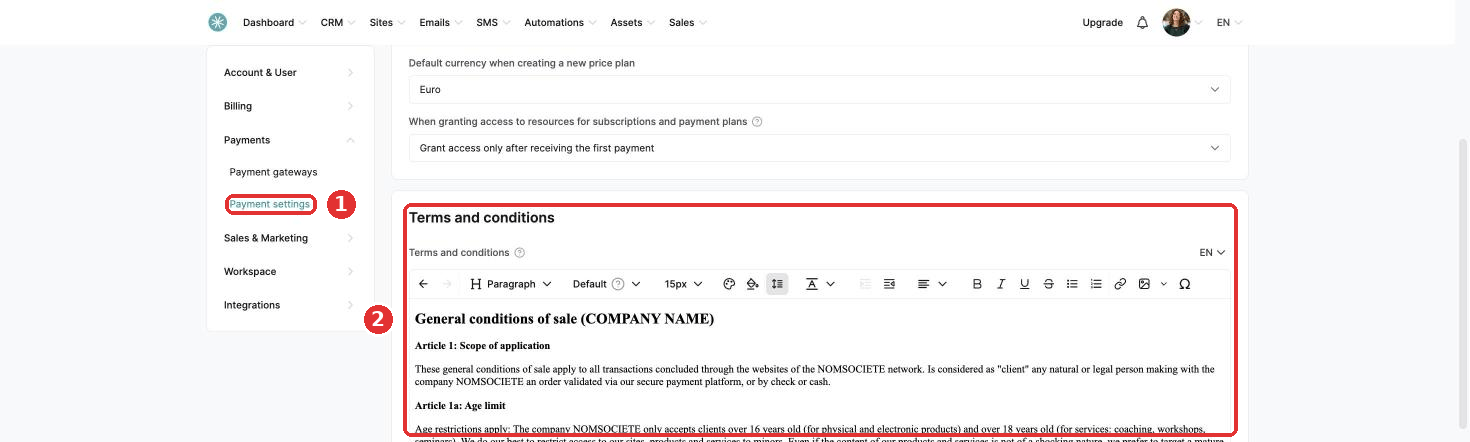
Changes to your terms in Payment settings update the popup automatically.
Once you save, the previous version of the page cannot be restored.
Method 2: on other pages
- In your funnel, click Add step and choose Info page.
- Add a text element with your terms and conditions.
- Copy the URL of this page.
- On your sales page, add a text element, select the words to link (such as "Terms and conditions") and click the link icon.
- Paste the URL and click Confirm.
- Click Save at the top right.
Did this answer your question?