
How to add an anchor link to jump to a specific part of your page
On a long sales page, an anchor link lets a parent jump straight to the right section, for example from "See my packages" at the top to your packages further down. There are two ways to set it up.
1. With HTML code
- In the page editor, add the SleepPRO™ HTML block directly above or below the spot the link should jump to. See How to add custom HTML to your pages.
- Enter this code, choosing your own name: <div id="packages"></div>. It does not show anything on the page.
- Save the page.
- Copy the link of your page.
- Add a button at the top of the page. In its URL field, paste your page link followed by #packages.
2. With an element's ID
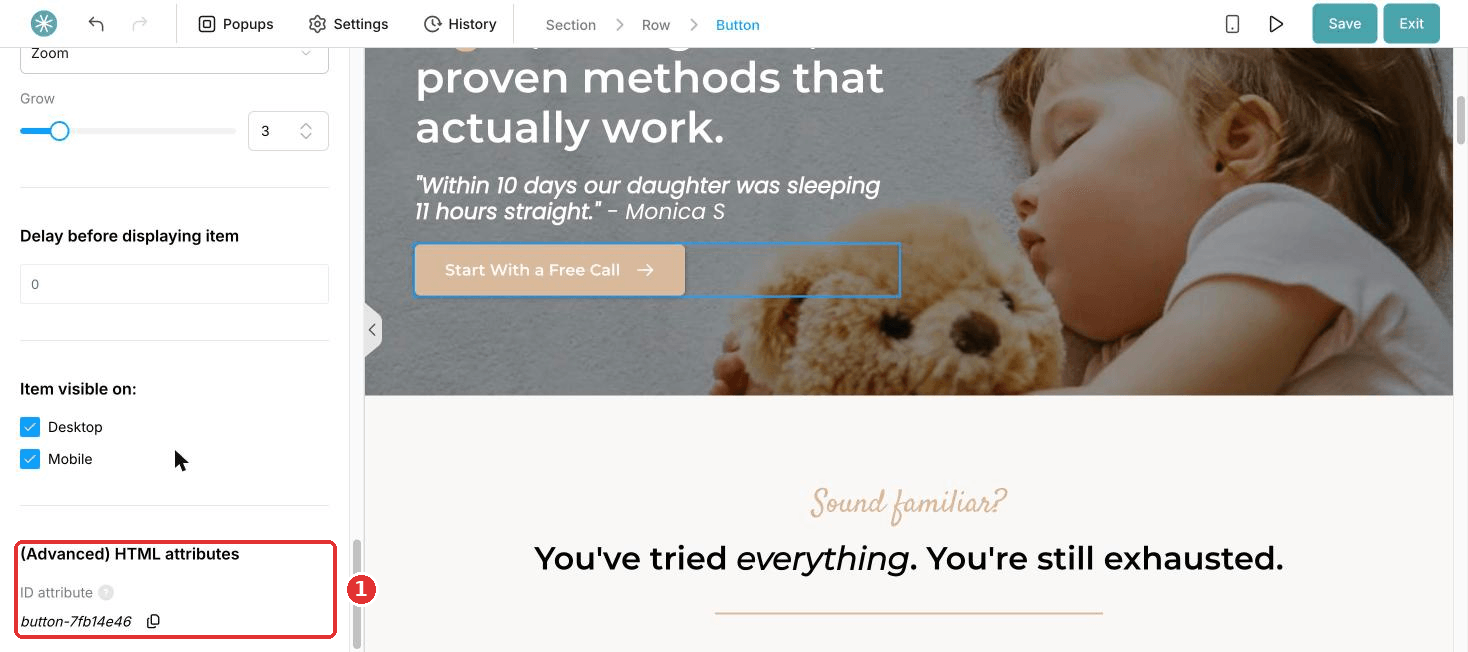
- Click the element you want to jump to. In its settings, scroll down and copy its ID attribute, for example section-d10b45b3.
- Copy the link of your page.
- Add a button at the top of the page. In its URL field, paste your page link followed by #section-d10b45b3.
A click on the button now scrolls the parent straight to this spot.
Did this answer your question?